Microsoft Purview Information Protection
An enterprise sensitivity label taxonomy with manual and automatic labeling, and Azure RMS encryption across Microsoft 365.
Difficulty
Advanced
Environment
Microsoft 365 / Purview
Deployment
Production
Est. Implementation
3–4 weeks
Executive Summary
This project deployed a complete Microsoft Purview Information Protection framework, covering an eight-tier sensitivity label taxonomy, label policy publishing with mandatory labeling, manual user-driven labeling in Office apps and Outlook, and an auto-labeling policy that detects Credit Card Numbers and automatically applies encryption.
Implemented in a Microsoft 365 E5 tenant, the framework gives the organisation a consistent classification standard that downstream Purview DLP, Audit and Records Management controls all build on top of.
Business Problem
Sensitive data generated across Microsoft 365 — emails, Word and Excel files, SharePoint content and Teams messages — had no formal classification or protection framework, leaving it exposed to accidental external sharing, unauthorised access and exfiltration via unprotected email.
Manual controls alone do not scale: users forget to apply labels, apply the wrong classification, or work without awareness of what is actually sensitive. A consistent, enterprise-standard taxonomy is also the prerequisite for downstream DLP and audit controls.
Business Risks
- Accidental external sharing of unclassified sensitive content
- Unauthorised access to confidential files and emails
- Data exfiltration via unprotected email and documents
- Regulatory non-compliance exposure (GDPR, ISO 27001)
Compliance Concerns
- ISO/IEC 27001:2022 information classification controls
- GDPR data protection requirements
- Consistent labeling as a prerequisite for downstream DLP and audit controls
Solution Overview
An eight-tier sensitivity label taxonomy (Public, General, Confidential, Highly Confidential, Internal Projects, Client Confidential, Finance Restricted and Executive Confidential) was created and scoped to Files and Emails, with encryption and access-control protection settings applied to the confidential tiers.
The label policy was published to all users with mandatory labeling enabled. On top of manual, user-driven labeling in Office apps and Outlook, an auto-labeling policy detects the built-in Credit Card Number Sensitive Information Type and automatically applies the Finance Confidential label with Azure RMS (AES-256) encryption — removing reliance on users to recognise and label regulated content themselves.
Architecture
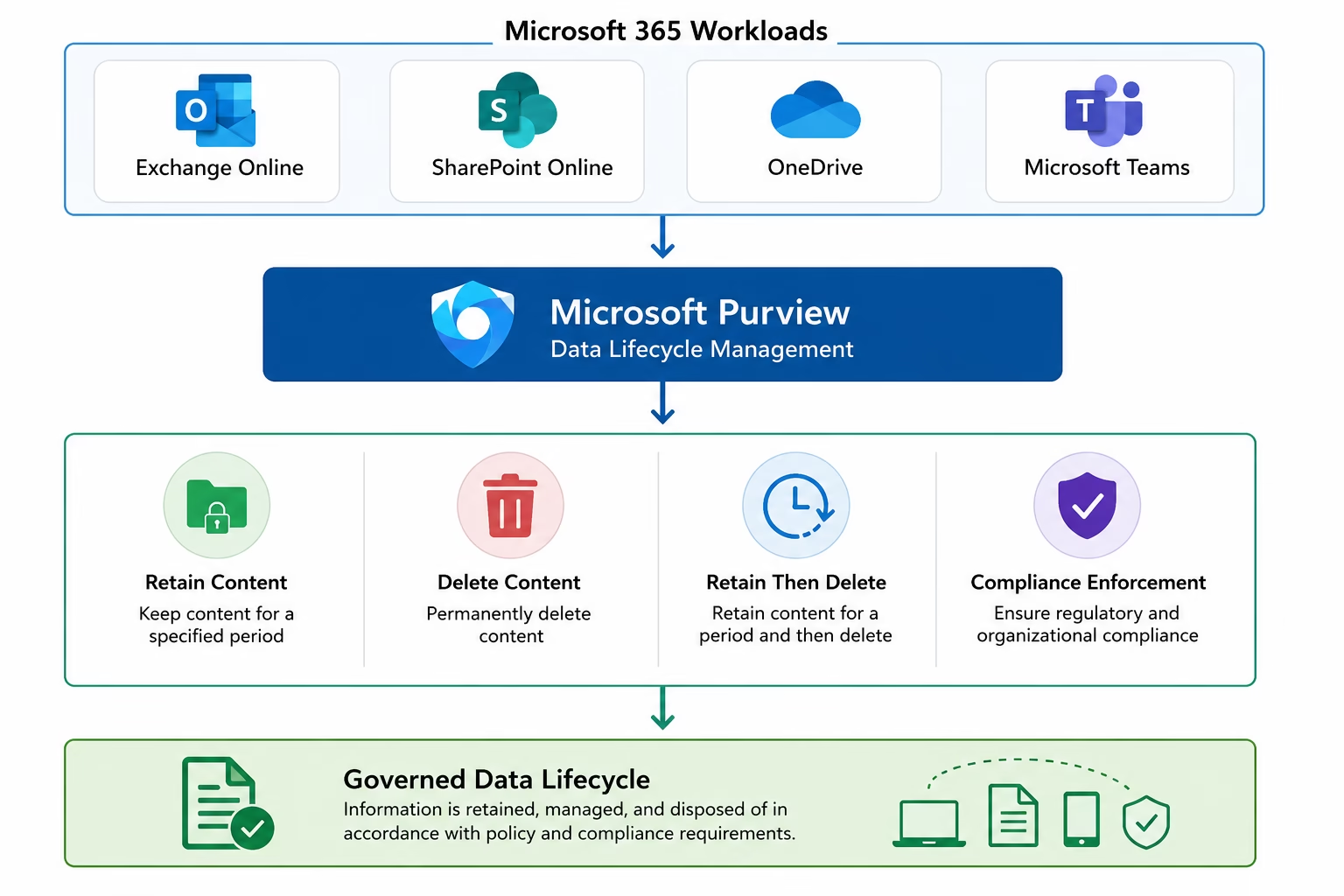
Technology Stack
Microsoft Purview
Sensitivity labels, label policies and auto-labeling policies
Azure RMS
AES-256 encryption and access-control enforcement
Exchange Online
Email classification and protection
SharePoint Online / OneDrive
Document classification and protection
Microsoft Teams
Chat and channel content protection
PowerShell / Microsoft Graph
Label taxonomy deployment and usage reporting
Lab Environment
- Tenant
- Patchthecloud.onmicrosoft.com (Microsoft 365 E5 trial)
- Licensing
- Microsoft 365 E5
- Identity
- Microsoft Entra ID
- Workloads
- Exchange, SharePoint, OneDrive, Teams, Office apps
- Labels Created
- 9 (default + custom taxonomy)
- Encryption
- Azure RMS (AES-256)
Implementation
A phased, expandable walkthrough. Screenshots and evidence can be attached to each phase.
Confirm Purview portal access and review the default label taxonomy.
- Verify compliance.microsoft.com access and licensing
- Review Microsoft's default sensitivity label taxonomy
- Scope the custom taxonomy required for the business
Screenshots for this phase can be added here.
PowerShell
Illustrative example snippets — copy or download each script. Production values are placeholders.
Create the sensitivity label taxonomy
# Illustrative scaffold based on New-SensitivityLabels.ps1 — values are placeholders.
Connect-IPPSSession -UserPrincipalName admin@yourtenant.onmicrosoft.com

New-Label -Name "Finance Restricted" -DisplayName "Finance Restricted" `
  -Tooltip "Restricted finance data — encryption enforced" `
  -ContentType "File, Email"

Set-LabelPolicy -Identity "Enterprise Taxonomy" -AddLabel "Finance Restricted"
Create the auto-labeling policy
# Illustrative scaffold based on New-AutoLabelingPolicy.ps1
New-AutoSensitivityLabelPolicy -Name "Auto-Label Credit Card Data" `
  -ApplySensitivityLabel "Finance Confidential" `
  -ExchangeLocation All -SharePointLocation All -OneDriveLocation All `
  -Mode TestWithoutNotifications

New-AutoSensitivityLabelRule -Policy "Auto-Label Credit Card Data" `
  -ContentContainsSensitiveInformation @{Name="Credit Card Number"; minCount="1"}
Report label usage
# Illustrative scaffold based on Get-SensitivityLabelReport.ps1
Get-Label | Select-Object DisplayName, Guid, ContentType |
Export-Csv -Path .\reports\sensitivity-labels.csv -NoTypeInformationConfiguration Screenshots
Click any tile to open the lightbox. Real screenshots will replace these placeholders.
Phase 1 · Overview
Phase 2 · Sensitivity Label Taxonomy
Phase 3 · Label Policy Publishing
Phase 4 · Manual Labeling
Phase 5 · Automatic Labeling
Validation
Taxonomy Published
All 9 labels (default + custom) published and visible to users.
Mandatory Labeling Enforced
Label policy requires classification before content is saved/sent.
Manual Labeling Confirmed
Labels apply correctly in Word and Outlook.
Auto-Labeling Confirmed
Credit Card Number content is automatically labeled Finance Confidential.
Encryption Enforced
Azure RMS (AES-256) restricts access on protected labels.
Challenges
Groups & Sites scope unavailable in the lab tenant
Extending labels to Microsoft 365 Groups and sites required additional Entra/M365 integration not available in this lab tenant — documented as a known limitation rather than worked around.
Manual labeling inconsistency
User-driven labeling alone was inconsistent, which is exactly why the auto-labeling policy for Credit Card Number detection was added on top.
Lessons Learned
- Publishing a label makes it available to users — it does not retroactively label existing content; auto-apply policies are needed for that.
- A clear taxonomy (why each tier exists) matters more than the number of labels.
- Auto-labeling policies should start in simulation before Automatic mode is enabled tenant-wide.
- Content marking and encryption are separate settings — both need to be deliberately configured, not assumed.
Business Impact
9-label taxonomy
Consistent Classification
Auto-labeling enabled
Reduced Manual Error
Azure RMS AES-256
Encrypted Access Control
Data-layer protection
Zero Trust Alignment
Skills Demonstrated
Related Certifications
Certifications this project maps to are highlighted.
Related Blog Articles
Placeholder cards — future TechCertGuide integration.
Microsoft Information Protection: Sensitivity Labels & Data Classification
MS-102 walkthrough of Purview Information Protection.
techcertguide.blog
Manual Sensitivity Labels in Microsoft Purview
User-driven labeling in Office apps and Outlook.
techcertguide.blog
Automatic Sensitivity Labels in Microsoft Purview
Building an auto-labeling policy for regulated data.
techcertguide.blog
GitHub Repository
lokeshm-it/Microsoft-Purview-Information-Protection
PublicSensitivity label taxonomy, manual/auto-labeling and Azure RMS encryption implementation.
Download Center
Project Case Study
PDF · Available soon
Architecture Diagram
PDF · Available soon
PowerShell Scripts
ZIP · Available soon
Technical Documentation
PDF · Available soon